User Guide
FlightDeck is a personal work-intelligence dashboard that connects to Microsoft 365 via the WorkIQ CLI. It scans your email, Teams chats, meetings, and documents, then surfaces the items that need your attention — ranked by urgency.
First Launch
When you open FlightDeck for the first time:
- You land on the Radar tab — This is the default view every time you open the app.
- The Connect banner appears — You'll see a banner with an Enable WorkIQ button.
- Click "Enable WorkIQ" — FlightDeck auto-accepts the WorkIQ EULA, runs a health check, and connects to your Microsoft 365.
- Automatic first refresh — Once connected, FlightDeck runs a Radar scan and pulls your meetings in parallel.
- Briefings are ready — Switch to Briefings to see your upcoming meetings. Generate briefings with one click.
- Start tracking — Click Track Item on anything that needs ongoing monitoring.
On subsequent launches, FlightDeck automatically reconnects and refreshes. Your tracked items, monitoring schedules, and preferences persist across sessions.
Dashboard Overview
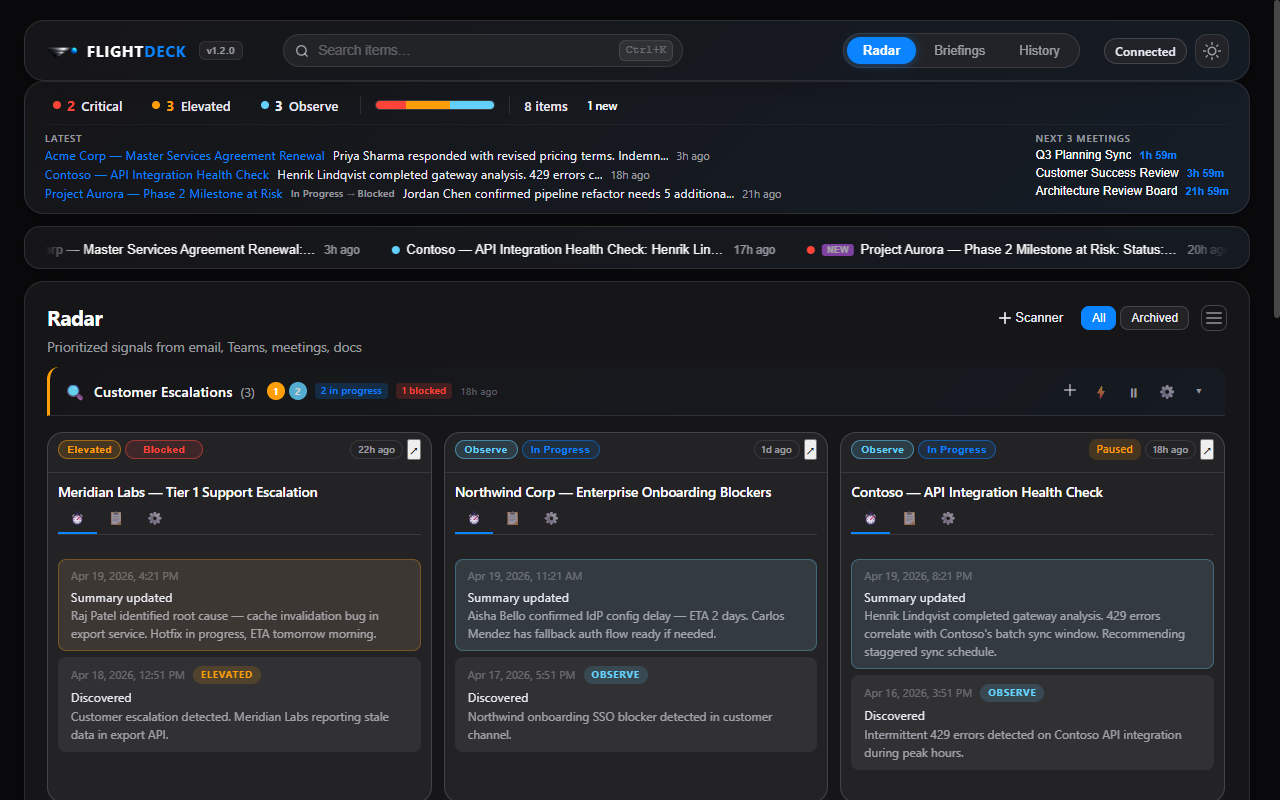
The dashboard is organized into three horizontal zones:
- Top bar — App branding, global search, tab navigation, theme toggle, and connection status
- KPI summary — At-a-glance severity counts, distribution bar, and item totals
- Main content — The active view's cards and details
Navigation

The top bar contains three main tabs:
| Tab | Purpose |
|---|---|
| Radar | All items — inbound signals and monitored tasks — organized by scanner |
| Briefings | AI-generated meeting prep and daily briefings |
| History | Audit trail of every scan, update, and recommendation |
KPI Summary Bar

The KPI bar shows at-a-glance metrics with three severity counters:
- Critical — Items needing action within 24 hours
- Elevated — Items needing attention this week
- Observe — Items on your watchlist, no immediate action
A color-coded severity distribution bar, item total, and attention badges complete the strip.
Radar View
The Radar is FlightDeck's primary view. It shows all your items — both inbound signals discovered by scanners and items you're actively monitoring — organized into collapsible sections grouped by scanner.
Each item displays three tabs: Activity (update timeline), Overview (metadata, people, links), and Monitor (schedule and signal controls).
Item actions include: Track/Untrack, Mark as Seen, Snooze, Archive, Pop Out, and Delete.
A filter bar lets you switch between All (active items) and Archived (completed/archived items). A density toggle switches between card view and compact list view.
Scanners

Scanners are the heart of FlightDeck's Radar. Each scanner is a named, scheduled AI scan that searches your M365 signals for specific topics.
Each scanner section header shows:
- Scanner name and item count
- Severity dots — clickable to filter
- Attention badges and new indicators
- Next run countdown
- Action buttons: add (+), run now (⚡), pause (⏸), settings (⚙️), collapse (▾)
Adding a Scanner
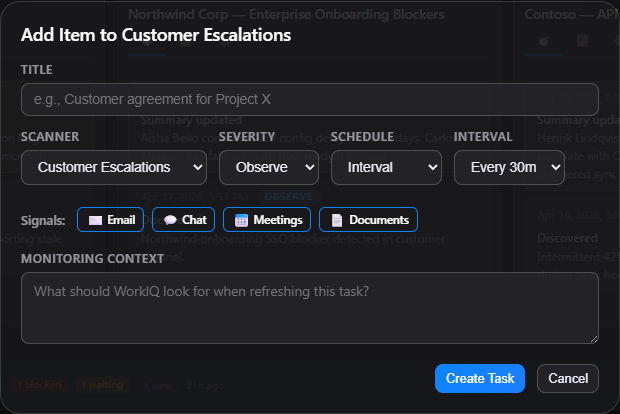
Click + Scanner at the top of the Radar view. Configure:
| Field | Description |
|---|---|
| Name | A descriptive label (e.g., "Competitor Intel") |
| Schedule | Interval (15m–4h), Scheduled, or One-time |
| Prompt | AI instructions — what signals to look for |
Additional options: signal types, work hours only, run on startup, missed run policy, auto-monitor, notification mode, max items, dedup strategy, exclude keywords, auto-archive, retention, and webhook URL.
Scanner Settings
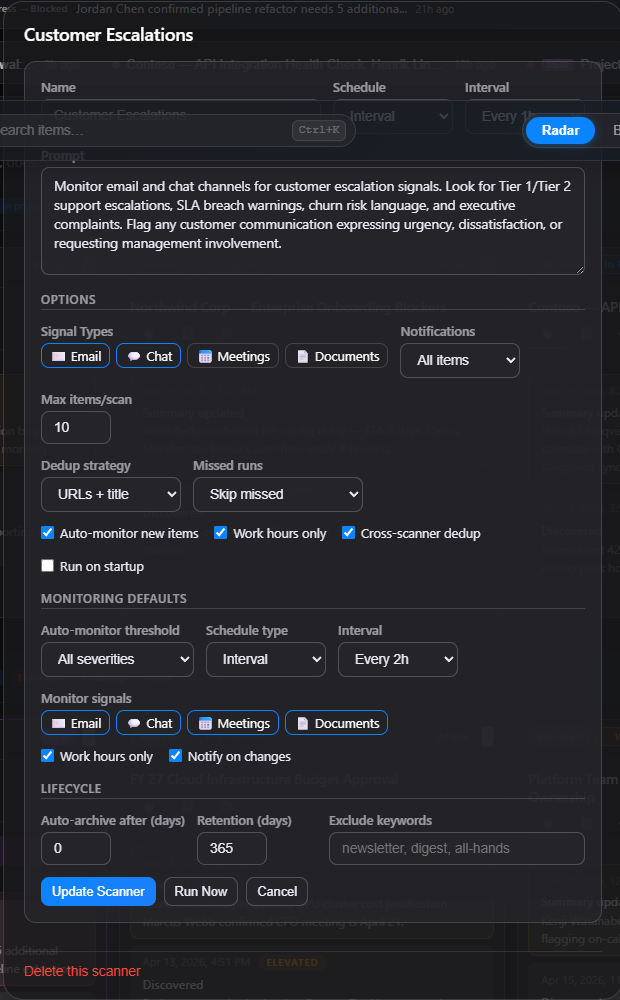
Click the ⚙️ gear icon in any scanner's header to edit its settings. You can also pause/resume, run immediately, or delete a scanner.
Scanner Examples
A great scanner starts with a great prompt. Here are six curated examples — from beginner to advanced — to show what's possible.
🟢 Starter
Deadline Watchdog · 🟢 Starter — Never miss a due date again.
Find any email, chat, or document that mentions a deadline, due date, or delivery date within the next 14 days. Include the specific date, what's due, and who's responsible. Flag anything within 3 days as critical.
Signals: Email, Chat, Documents · Schedule: every 2h during work hours
💡 Tip: Add exclude keywords: "newsletter, marketing" to filter out noise from mass emails.
Action Items I Owe · 🟢 Starter — Surface tasks assigned specifically to you.
Search for action items, tasks, or requests assigned to me or where I'm mentioned as the owner. Look for phrases like "can you", "please handle", "action item:", "@me". Prioritize items with no response yet.
Signals: Email, Chat · Schedule: every 1h
💡 Tip: Enable auto-monitor so new action items get tracked automatically.
🟡 Intermediate
Team Health Signals · 🟡 Intermediate — Spot morale and capacity issues early.
Look for signs of team stress, burnout, or capacity issues: mentions of working weekends, blocked work, missed deadlines, requests for help, or escalation language. Note the person, the signal, and the severity. Don't surface routine workload discussion — only flag genuine concerns.
Signals: Email, Chat, Meetings · Schedule: every 4h
💡 Tip: Pair with the Scheduled type and run once at end-of-day for a daily digest.
Sales Deal Radar · 🟡 Intermediate — Track deal momentum across your pipeline.
Scan for deal-related updates: pricing discussions, contract mentions, competitor references, timeline changes, budget approvals, or stakeholder objections. For each item, note the deal or customer name, what changed, and the direction (positive/negative/neutral).
Signals: Email, Chat, Documents · Schedule: every 2h
💡 Tip: Use max items: 10 and dedup: both to keep the view focused on unique deals.
🔴 Advanced
Executive Briefing Scanner · 🔴 Advanced — Board-ready intelligence from your signals.
Identify items that an executive would need to know about: strategic decisions being made, org-level risks, cross-team dependencies at risk, budget or headcount discussions, and customer escalations. Summarize each in one sentence with the business impact. Ignore routine operational updates — only surface things that move the needle.
Signals: Email, Chat, Meetings, Documents · Schedule: Scheduled 8:00 AM
💡 Tip: Set work hours only and run on startup so it's ready when you open FlightDeck.
Cross-Team Dependency Tracker · 🔴 Advanced — Surface blockers hiding across team boundaries.
Find cross-team dependencies: work that's waiting on another team, handoffs mentioned in conversations, shared deliverables with mismatched timelines, or integration points under discussion. For each, note the teams involved, what's at stake, and whether there's a resolution path. Prioritize items with no clear owner.
Signals: Email, Chat, Documents · Schedule: every 4h
💡 Tip: Enable notifications: all for this scanner — dependency risks need fast action.
Prompt Writing Tips
- Be specific about what to find — "mentions of deadline" beats "important stuff". Name the patterns you care about.
- Tell it what to ignore — Exclusion criteria reduce noise dramatically. "Don't surface routine standups" saves you from alert fatigue.
- Ask for structured output — Phrases like "note the person, the date, and the risk" help the AI produce scannable results.
- Match schedule to urgency — Deadlines need hourly checks; team health can run once a day. Over-scanning wastes resources.
- Iterate — Start simple, review what comes back, and refine. The best scanners evolve from real usage.
See the full Scanner Examples in the complete user guide for all 10 examples and detailed prompt writing guidance.
Tracked Items & Monitoring
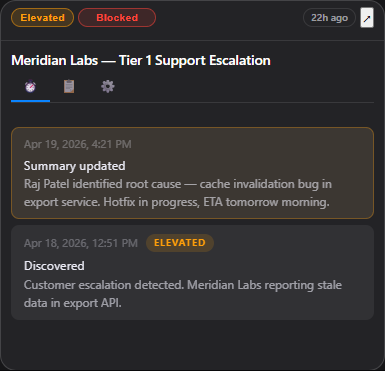
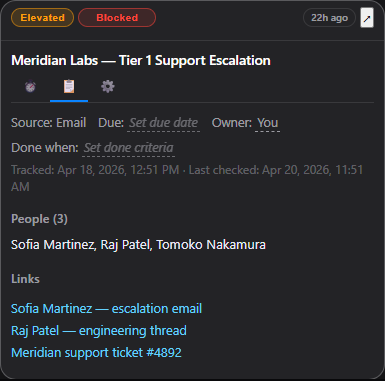
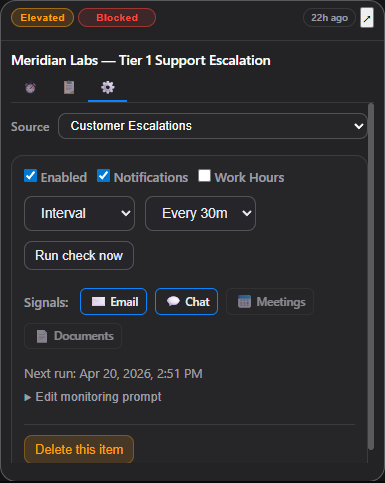
Click Track Item on any radar result to promote it to active monitoring. FlightDeck re-scans the item on a schedule you control and notifies you when something meaningful changes. Each tracked item card has three tabs — Activity, Overview, and Monitor — giving you full control over what's being watched, why it matters, and how often it's checked.
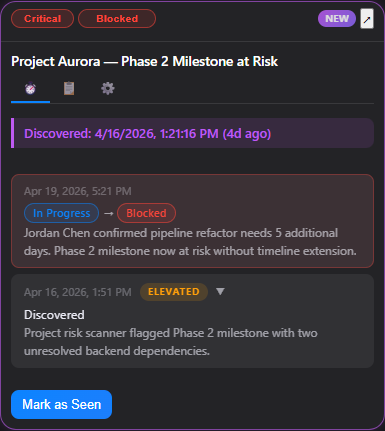
Activity Tab
A chronological timeline of every change detected by the monitoring AI. Each entry shows a timestamp, severity badge, and a description of what changed.
- Unseen updates are highlighted — click Mark as Seen to clear them
- The card shows up to 3 recent entries; expand to see the full history
- A NEW UPDATE badge appears on the card when unseen changes exist
Overview Tab
The Overview tab is the item's profile — editable metadata and AI-generated context that keeps the full picture in one place.
- Suggested next steps — AI-recommended actions with Draft ↗ buttons that generate ready-to-send messages
- Source type — Where the item originated (Email, Chat, Meeting, etc.)
- Due date — Editable inline; auto-extracted from signals or set manually
- Owner — Editable inline assignment
- Done when — A text field defining completion criteria. This value is automatically included in the monitoring prompt so the AI watches for it and can mark the item complete
- People — Collapsible list of contacts involved
- Evidence links — Deep links back to the original M365 source
Monitor Tab
Full control over how FlightDeck watches this item. Configure what gets scanned, when, and what the AI should look for.
- Source scanner — Which scanner handles this item
- Enabled / Notifications / Work hours — Toggle monitoring on/off, control alerts, restrict to business hours
- Schedule type — Choose from:
- Interval — 15m, 30m, 1h, 2h, or 4h
- Weekly — Pick specific days and times
- One-time — Single future check
- Signal filters — Toggle which M365 channels to scan: Email, Chat, Meetings, Documents
- Custom monitoring prompt — Editable AI instructions for exactly what to watch for
- Run check now — Trigger an immediate scan
- Delete — Remove the item from tracking entirely
Lifecycle Statuses
| Status | Meaning |
|---|---|
| In Progress | Active item being monitored |
| Blocked | Stalled — detected from AI status reports |
| Waiting | Pending external input |
| Snoozed | Temporarily hidden; auto-un-snoozes later |
| Complete | Resolved — monitoring auto-disables |
| Archived | Cold storage for reference |
Automatic Status Detection
FlightDeck doesn't just track items — it triages them for you. Each time the monitoring AI checks an item, it analyzes the latest signals and automatically updates the lifecycle status based on what it finds:
- Blocked — If the AI detects language like "stalled," "blocked," or "waiting on a dependency," the item moves from In Progress to Blocked
- Waiting — If signals indicate the ball is in someone else's court — "pending review," "awaiting response" — the status shifts to Waiting
- Complete — When the AI sees "resolved," "completed," or "closed" — or when your Done when criteria are met — the item is marked Complete, monitoring is automatically disabled, and a completion timestamp is recorded
You can always override a status manually, but in most cases FlightDeck handles it before you even check. The triage progress bar on the dashboard shows how many of your active items have been reviewed, so you can tell at a glance whether anything still needs your attention.
Done Criteria
The Done when field on the Overview tab lets you define what "finished" looks like for each item — for example, "Jordan confirms receipt of the budget spreadsheet" or "Contract signed by both parties." This text is automatically woven into every monitoring prompt, so the AI actively watches for signals that match your criteria and marks the item complete when they appear.
Briefings
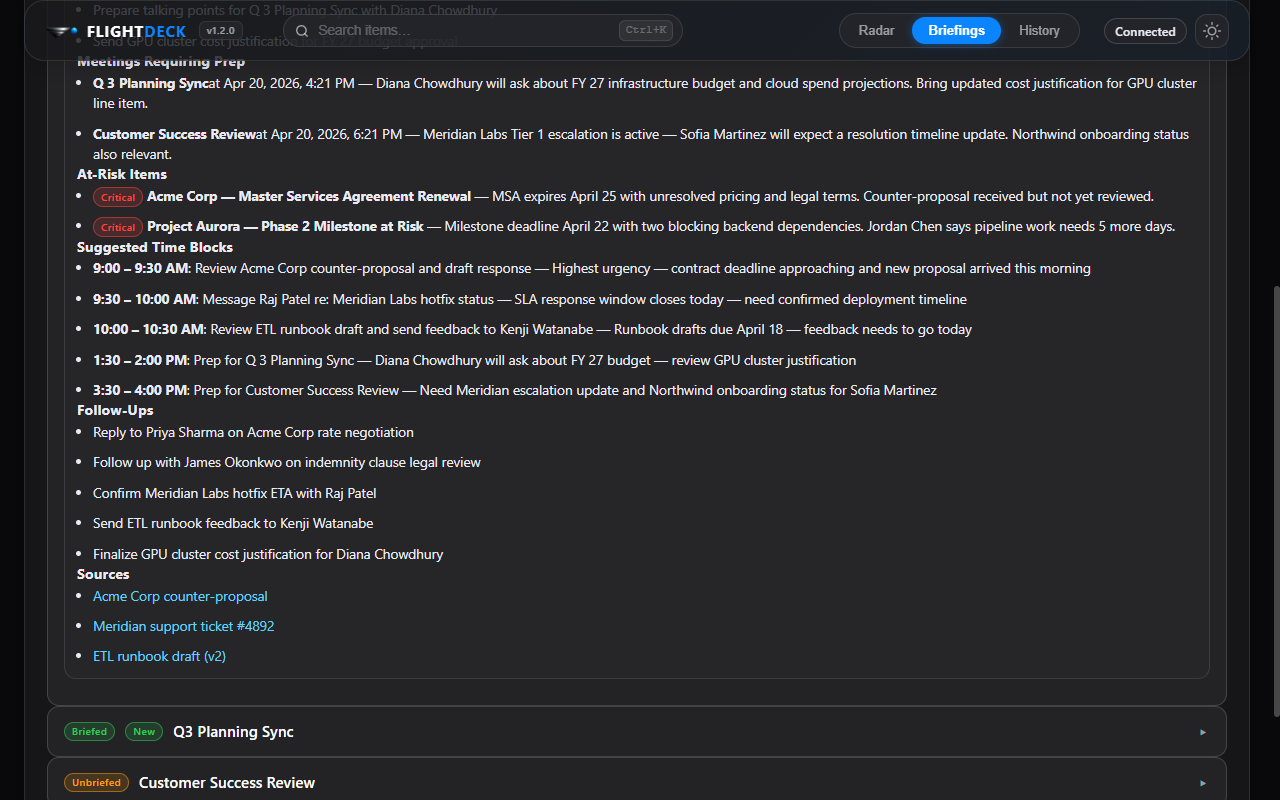
The Briefings view generates AI-powered meeting preparation and a daily overview.
My Day Briefing
The ☀️ My Day briefing at the top gives you a comprehensive daily overview:
- Headline — A one-line summary of your day
- Top Priorities — The most important things to address
- Meetings Requiring Prep — Meetings with complex agendas or risks
- At-Risk Items — Critical-severity items that could escalate
- Suggested Time Blocks — AI-recommended schedule
- Follow-Ups — Actions to take after meetings
Meeting Briefings
Each upcoming meeting shows a Briefed or Unbriefed badge. Expand to see the full briefing: headline, key updates, decisions needed, top risks, talk track, follow-ups, and sources.
History
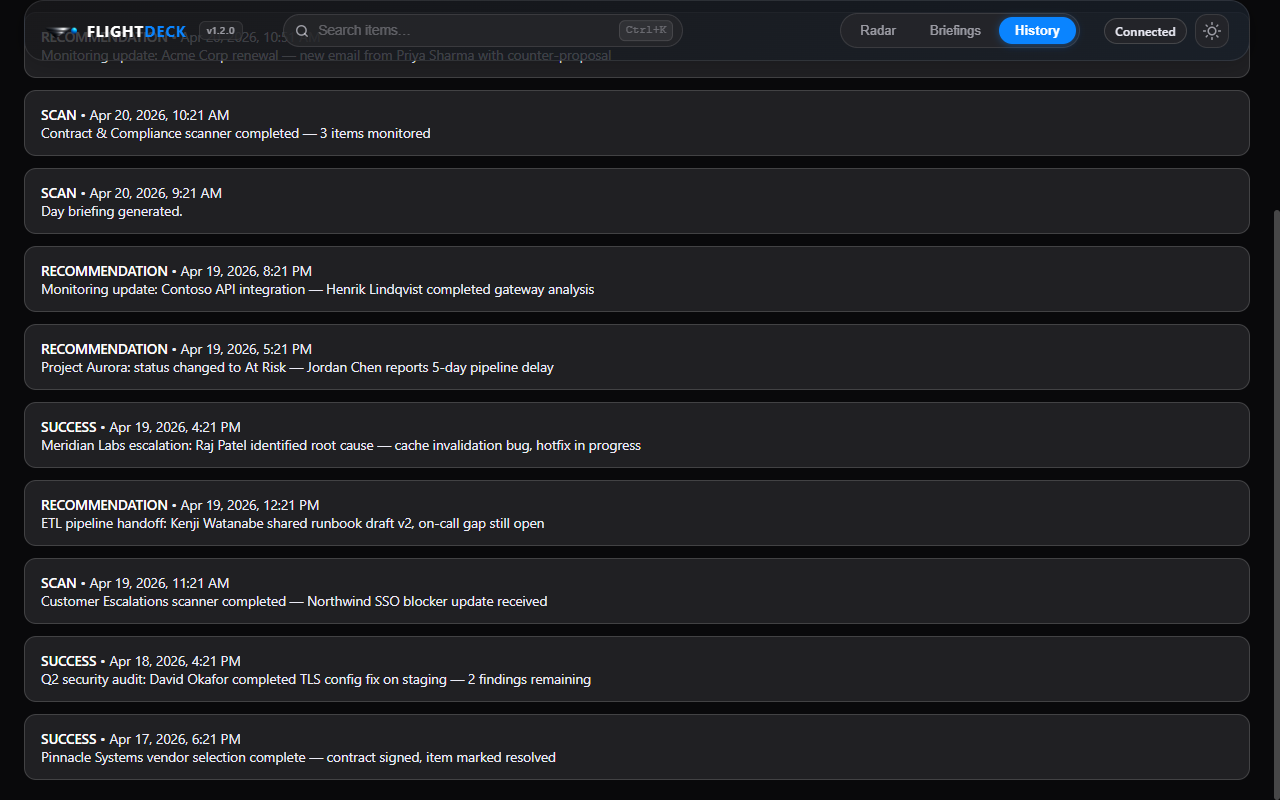
A chronological audit trail of everything FlightDeck has done — every scan, recommendation, and system event. Entries are color-coded by type: STARTUP, SCAN, and RECOMMENDATION.
Search
Press Ctrl+K to activate global search. Type to instantly filter across radar
items, tracked tasks, and briefings. Results use fuzzy matching — multi-word queries match
when all words appear somewhere in the item.
Keyboard Shortcuts
| Shortcut | Action |
|---|---|
Ctrl+K | Open global search |
Ctrl+R | Refresh current view |
Esc | Close search / dismiss popups |
System Tray
FlightDeck runs in the system tray when minimized. Monitoring continues in the background — you'll receive desktop notifications when tracked items change. Click the tray icon to restore, right-click for options.
Demo Mode
FlightDeck includes demo mode for presentations and exploring without a Microsoft 365 connection.
npm run demo          # Launch with sample data
npm run demo:reseed   # Launch with fresh sample data
Demo mode loads realistic sample data, never calls WorkIQ, and uses a separate data store
so your real data is never touched. Run npm run screenshots to capture all
views in both themes.